
Layouts & the block editor
Two pieces make up a designed email in Camelmailer: a block editor for the body you write once per message, and a layout for the branded shell every message shares. The body carries the content, the layout carries the chrome.
This split keeps your header, footer and brand in one place. A template or a campaign holds only the content, authored in the block editor. A layout holds the logo, the color scheme and the surrounding markup, and wraps the content at render time. Change the layout once and every mail that uses it updates.
The block editor
The template and campaign editors open on a visual, drag-and-drop block editor. You build the body from standard email blocks, reorder them by dragging, and edit each block’s text and style in place, with a live preview beside the canvas.
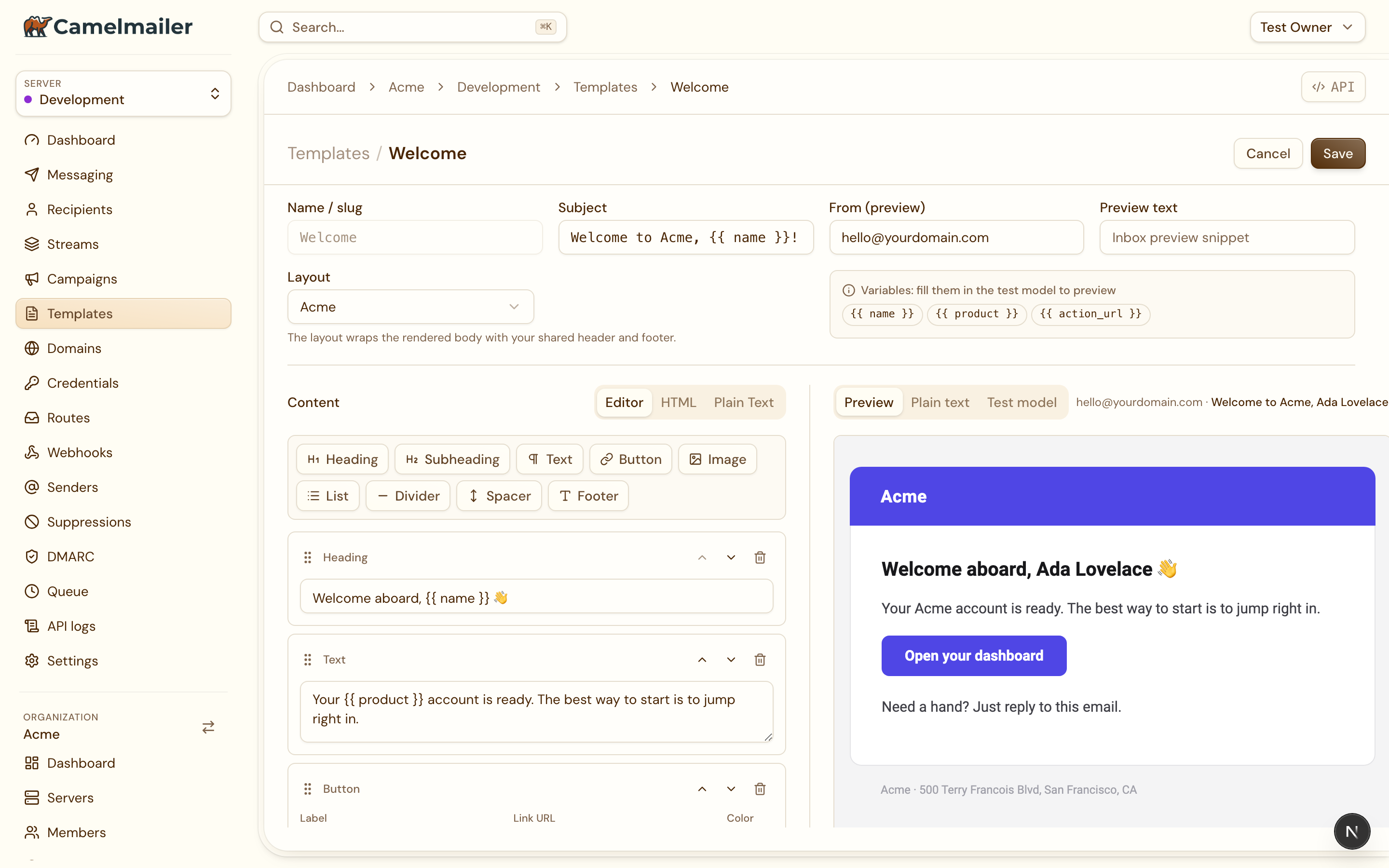
The block palette covers the elements most transactional mail needs:
| Block | What it is |
|---|---|
| Heading | A title line for the message. |
| Subheading | A secondary line under a heading. |
| Text | A paragraph of body copy. |
| Button | A call-to-action link styled as a button. |
| Image | An inline image referenced by URL. |
| List | A bulleted list of items. |
| Divider | A horizontal rule between sections. |
| Spacer | Vertical whitespace. |
| Footer | A closing block for fine print. |
Editor, HTML and Plain Text
A switch in the top right moves between three modes over the same message:
- Editor is the visual block builder described above.
- HTML is the expert mode: edit the raw HTML body directly for anything the blocks do not cover.
- Plain Text edits the text part that clients and filters preferring text will show.
Blocks serialize to content-only HTML that carries an invisible round-trip marker, so a block-authored message reopens in the Editor exactly as you left it. A message whose HTML was written by hand or imported has no marker, so it opens straight in HTML mode. The block output is the body alone; the branded header and footer come from the layout, not from each message.
Layouts
A layout is the reusable wrapper for the chrome every mail shares. It lives alongside templates on the server (/api/v2/server/layouts) and appears in the dashboard behind the Templates / Layouts switch on the Templates page, where each layout shows as a card with a real mail thumbnail.
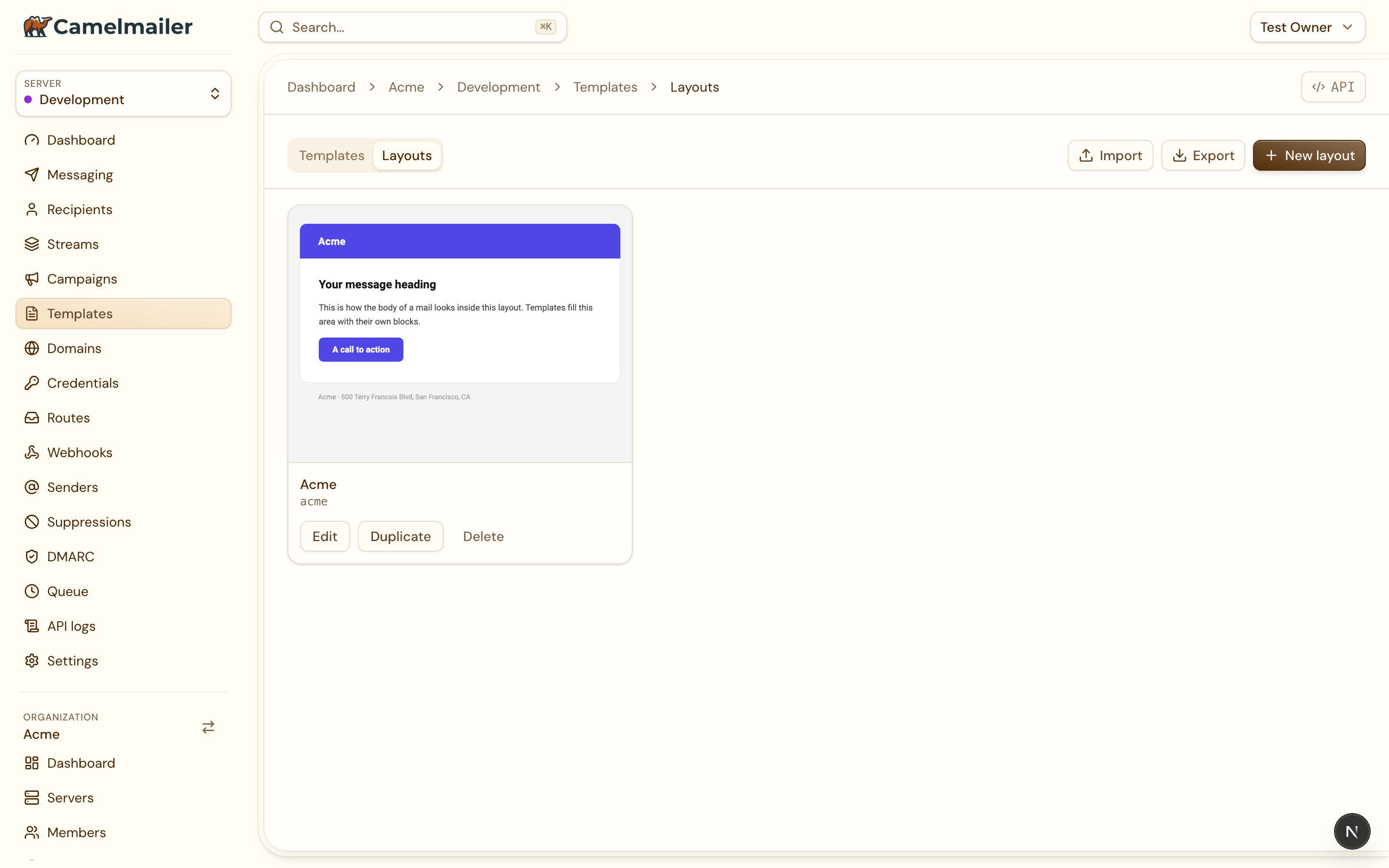
Clicking a layout opens a full-page editor that mirrors the template editor, with a structured Editor mode for the logo, brand and color scheme plus an HTML expert mode, and a live preview.
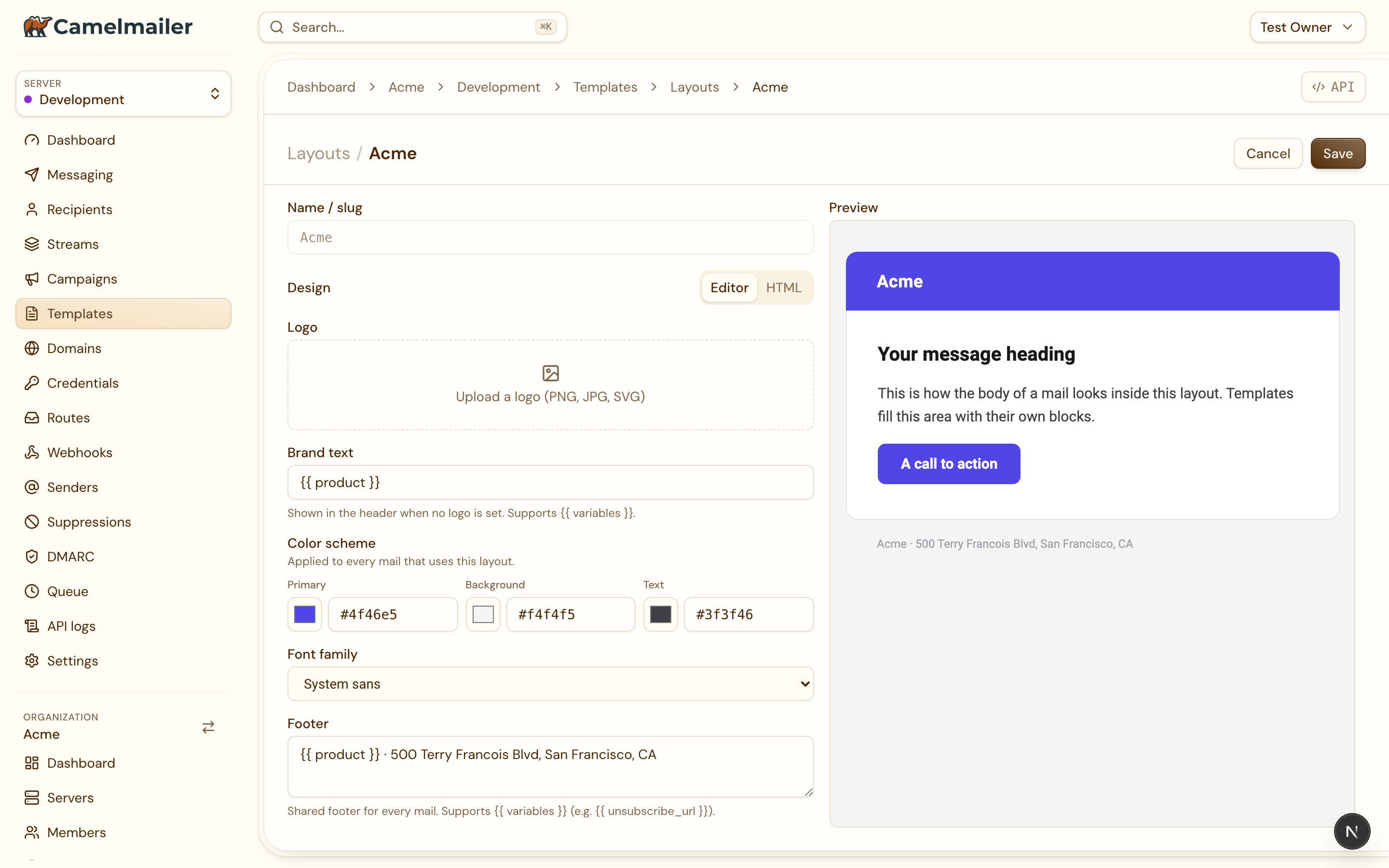
Color scheme
A layout carries a color scheme (primary color, background, text color and font family) that applies across every mail using the layout. Set it once on the layout rather than per template, and the whole family of mail stays visually consistent.
Logo served from Postgres
Upload a logo in the layout editor and Camelmailer stores it in Postgres, then serves it from a real URL that it writes into the wrapper. Mail clients such as Gmail strip images embedded as data: URIs, so a served URL is what makes the logo actually arrive in the inbox. The logo endpoint is public, since a layout image is not tenant-private, and the mail references the absolute served URL.
The {{{ content }}} wrapper
The wrapper embeds the message body through a raw content variable, so the body’s own HTML survives intact:
<table role="presentation" width="100%">
  <tr><td><img src="{{ logo_url }}" alt="{{ product }}"></td></tr>
  <tr><td>{{{ content }}}</td></tr>
  <tr><td>Acme GmbH · <a href="{{ unsubscribe_url }}">Unsubscribe</a></td></tr>
</table>
The triple-mustache {{{ content }}} (or the {{& content }} form) is required. An escaped {{ content }} would render the mail’s markup as visible text, so the editor blocks saving until a raw placeholder is present. The wrapper sees the same model as the message plus the injected content, so it can use variables such as product and unsubscribe_url too. New templates default to the first layout on the server.
{{ name }} by default and leaves only {{{ name }}} and {{& name }} raw. That is exactly why the wrapper must use the raw form to embed the body. The full syntax lives in template syntax.